

Today I want to talk about something tiny in Home Assistant that explains a lot of “why did nothing happen?” moments: automation modes.
You know that moment when you press a button twice and the second press appears to do absolutely nothing? Or when a motion light turns off even though someone is still in the room? Often, the automation did exactly what you told it to do. The problem is that the default behavior was not what you expected.
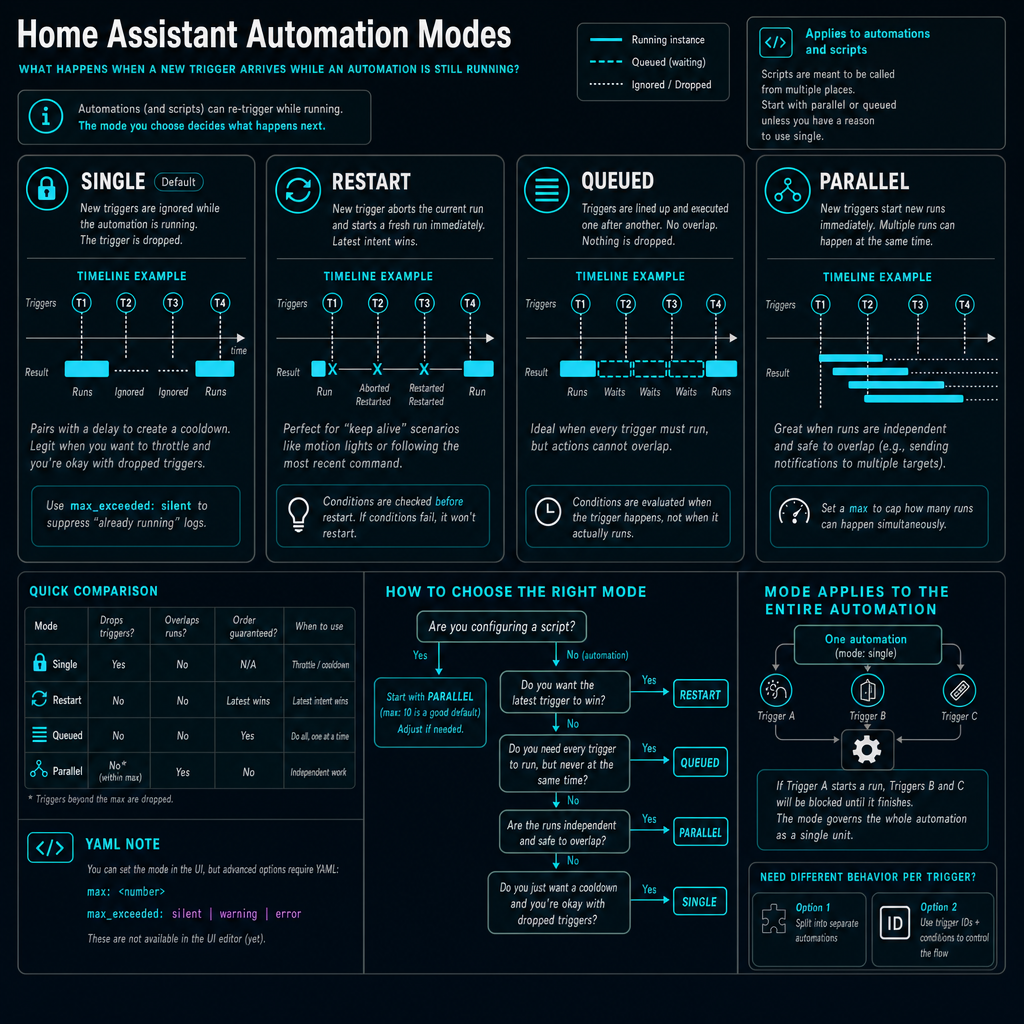
Automation modes decide what happens when the same automation is triggered again while it is still running. That sounds like a small detail. It is not. It changes whether Home Assistant ignores the new trigger, restarts the automation, queues it, or runs another copy next to the first one.
The short version
Home Assistant has four automation modes:
| Mode | What happens when it is triggered again while running? | Use it when... |
|---|---|---|
| single | The new trigger is ignored. | You intentionally want a cooldown or throttle. |
| restart | The current run stops and a new run starts. | The latest trigger should win. |
| queued | The new run waits until earlier runs finish. | Every trigger matters, but overlap is not safe. |
| parallel | A new independent run starts immediately. | Runs are independent and safe to overlap. |
The default for automations is single. That is conservative, safe, and historically sensible. It is also the reason a lot of automations quietly drop triggers.
So my practical advice is simple: do not leave the mode implicit once an automation gets even slightly interesting. Pick the behavior you actually want.
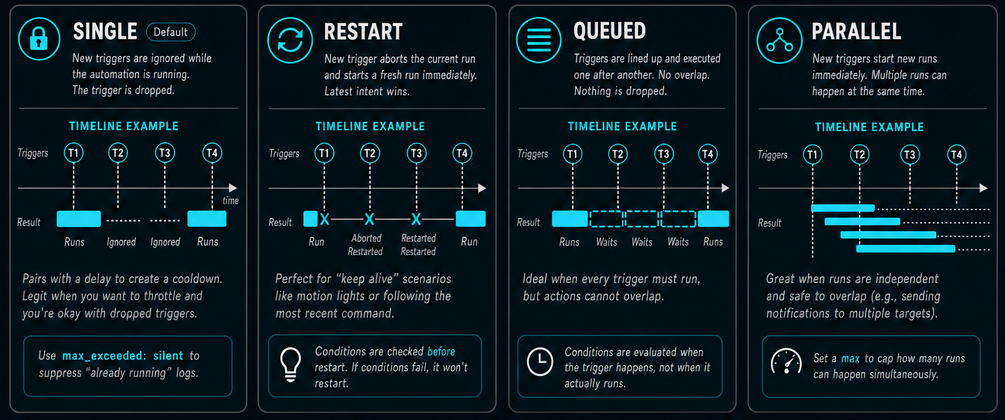
Let me break down each one:
Single
This is the default mode. When a new trigger comes in while the automation is still running, it just gets ignored. Home Assistant will log a warning, but that's it. The trigger is dropped.
This can be useful for simple throttling when you pair it with a delay at the end, but honestly? It drops legitimate work, and that's usually not what you want. For scripts especially, this default causes silent failures that you might not notice for weeks.
Restart
This mode says “latest intent wins”. When a new trigger arrives, it aborts the current run and immediately starts fresh. This is perfect for things like motion sensors keeping lights alive, or when you're adjusting a dimmer and want it to follow your most recent command.
Here's something important that catches people off guard: restart mode checks conditions before it actually restarts. If motion triggers again while your lights are on, but someone manually turned off the light in the meantime, the automation won't restart because the conditions aren't met anymore. This is actually a good thing because it prevents unwanted behavior, but it surprises people who expect unconditional restarts.
Queued
This one lines up triggers and executes them one after another. No triggers get dropped while there is room in the queue, and nothing overlaps. You can set a max to control how many triggers can wait in line (the default is 10).
This is ideal when actions absolutely cannot overlap, but you still want every trigger to be honored. Think doorbell chimes or commands to a device that can't handle multiple requests at once.
Here's the big gotcha with queued mode: conditions are evaluated when the trigger happens, not when the automation actually runs. If your automation triggers while busy and the conditions pass at that moment, it joins the queue. But if those conditions change while waiting in line, it doesn't matter. The automation will still run when it reaches the front of the queue. This is probably the most commonly misunderstood aspect of automation modes.
Parallel
This mode spins up multiple runs at the same time. It's only safe if your actions don't conflict with each other. You can also set a max here to control how many runs can happen simultaneously.
Great for things like sending notifications to multiple targets or kicking off independent tasks that don't step on each other's toes. This is often the best choice for reusable scripts that get called with different parameters.
Mode applies to the whole automation
This trips people up constantly: the mode is not per trigger. It applies to the entire automation or script.
If an automation has three triggers and it is already running because trigger A fired, then trigger B and trigger C are also subject to that same mode. With single, they are ignored. With restart, they restart the whole automation. With queued, they join the same queue. With parallel, they start another run.
If different triggers need different behavior, split the logic into multiple automations. You can also use trigger IDs inside one automation for branching, but the mode itself still applies to the whole thing.
How to choose
Here is the rule of thumb I use:
| Question | Pick |
|---|---|
| Should the newest trigger replace whatever is currently happening? | restart |
| Does every trigger need to run, but never at the same time? | queued |
| Are the runs independent and safe to overlap? | parallel |
| Do you intentionally want to throttle and drop repeated triggers? | single |
For scripts, be extra deliberate. Scripts are often called from automations, dashboards, voice assistants, and other scripts. If a script can be called from multiple places, single is often too restrictive. Start by asking whether queued or parallel better matches the job.
Where to set it
In the Home Assistant UI, go to Settings → Automations & scenes, open the automation, then use the three-dot menu and choose Change mode. That opens the mode dialog with single, restart, queued, and parallel.
If you pick queued or parallel, the same dialog also lets you set max. For queued, that includes waiting runs. For parallel, that means active parallel runs. The default is 10.
That is the path I would point most people to first. It is visible, it uses the same words as the rest of the automation editor, and it links directly to the Home Assistant automation modes documentation if you want the reference version.
If you prefer YAML, the same setting lives at the automation level:
automation:
  - alias: Example automation
    mode: restart
    triggers:
      - trigger: state
        entity_id: binary_sensor.example
        to: "on"
    actions:
      - action: light.turn_on
        target:
          entity_id: light.example
For queued and parallel, the YAML version of the limit looks like this:
mode: queued
max: 3
When the limit is exceeded, Home Assistant logs a warning by default. If you intentionally use single as a throttle, max_exceeded: silent can make sense.
The motion light anti-pattern
The automation that causes the most confusion looks like this:
- Motion detected.
- Turn on the light.
- Wait 30 seconds.
- Turn off the light.
If that automation uses single, new motion during the wait is ignored. The light turns off even though someone is still there. Technically correct. Also annoying.
There are two sane fixes.
Option 1: use restart. This is the compact version. Each motion event restarts the wait, which keeps the light on while motion continues.
Option 2: split it into two automations. One automation turns the light on when motion starts. Another turns it off when motion has been clear for long enough. This is often easier to reason about, especially for beginners.
automation:
  # Motion detected, turn the light on.
  - alias: Turn on living room lights when motion is detected
    triggers:
      - trigger: state
        entity_id: binary_sensor.living_motion
        to: "on"
    actions:
      - action: light.turn_on
        target:
          entity_id: light.living_room

  # No motion for 2 minutes, turn the light off.
  - alias: Turn off living room lights when motion clears
    triggers:
      - trigger: state
        entity_id: binary_sensor.living_motion
        to: "off"
        for: "00:02:00"
    actions:
      - action: light.turn_off
        target:
          entity_id: light.living_room
I like this second pattern a lot. It is boring, visible, and easy to debug. Boring is underrated.
Guardrails that save you later
Set a sane max. The default of 10 is fine in many cases, but it can be too generous. If you use queued to protect a device, maybe 2 or 3 is enough. If you use parallel for notifications, maybe 5 is plenty.
Debounce noisy sensors. If a sensor flips rapidly, your mode choice will not save you from chaos. Use for on the trigger when the state needs to stay stable before the automation runs.
triggers:
  - trigger: state
    entity_id: binary_sensor.front_door
    to: "on"
    for: "00:00:03"
Remember that automations and scripts each have their own mode. If an automation calls a script, the automation mode controls the automation. The script mode controls the script. They do not magically inherit from each other.
Use timeouts when waiting. A wait without a timeout can block a run forever if the thing you are waiting for never happens. That can make mode behavior look broken when the real problem is a run that never ends.
- wait_template: "{{ states('sensor.temperature') | float > 20 }}"
  timeout: "00:05:00"
  continue_on_timeout: false
Debugging mode problems
The best tool for this is the trace view. Go to Settings → Automations & scenes, open the automation, and check Traces.
Traces make the abstract behavior visible. You can see where a run started, which conditions passed, which actions ran, and where time was spent. If you are debugging modes, that beats staring at YAML and hoping enlightenment arrives.
Also check the logs. If you see “already running” warnings, that is usually Home Assistant telling you that single is dropping triggers. Either that is intentional throttling, or it is a sign the mode is wrong.
The takeaway
Automation modes are not an advanced detail you can ignore forever. They are the answer to a very practical question:
What should happen if this thing gets triggered again before it is done?
Answer that deliberately:
- Use restart when the latest trigger should win.
- Use queued when every trigger matters, but overlap is unsafe.
- Use parallel when runs are independent.
- Use single when you intentionally want to throttle and drop repeats.
The default is there for a reason. It is just not always the reason you need.
If your automation ever made you say “but I triggered it twice”, check the mode. There is a good chance Home Assistant did exactly what it was told to do.
../Frenck